Employers

Share applicant profiles with employers, on your terms

An applicant profile is the view of an applicant that you send to an employer. You choose which fields it shows, and the employer replies with feedback or an interview request from the same page.

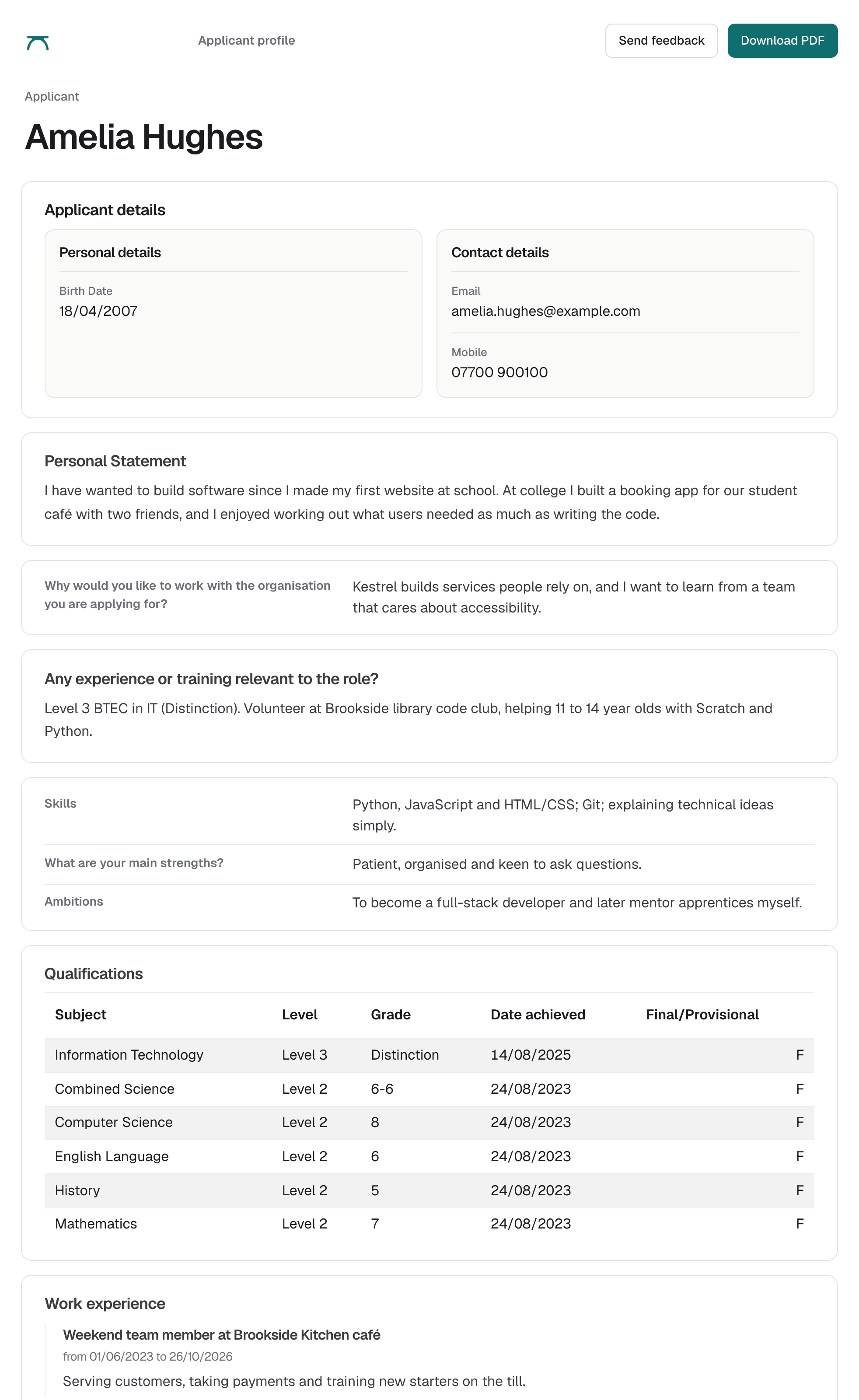
Amelia Hughes's applicant profile as an employer sees it, with her personal statement and qualifications, and Download PDF and Send feedback buttons.
An applicant profile is a web page an employer can read, download as a PDF and reply to.

You decide what employers see

You choose which fields an applicant profile shows to employers. Shared profiles and their emails do not name the vacancy or its employer.

Send one profile or many

Profiles can be shared one at a time with any email address, or sent in bulk to a Contact at the Opportunity’s Employer.

You can hide the applicant’s name, personal details or contact details when you share a profile, including when you send profiles in bulk. Shared profile links stop working after 30 days, or if anyone changes them.
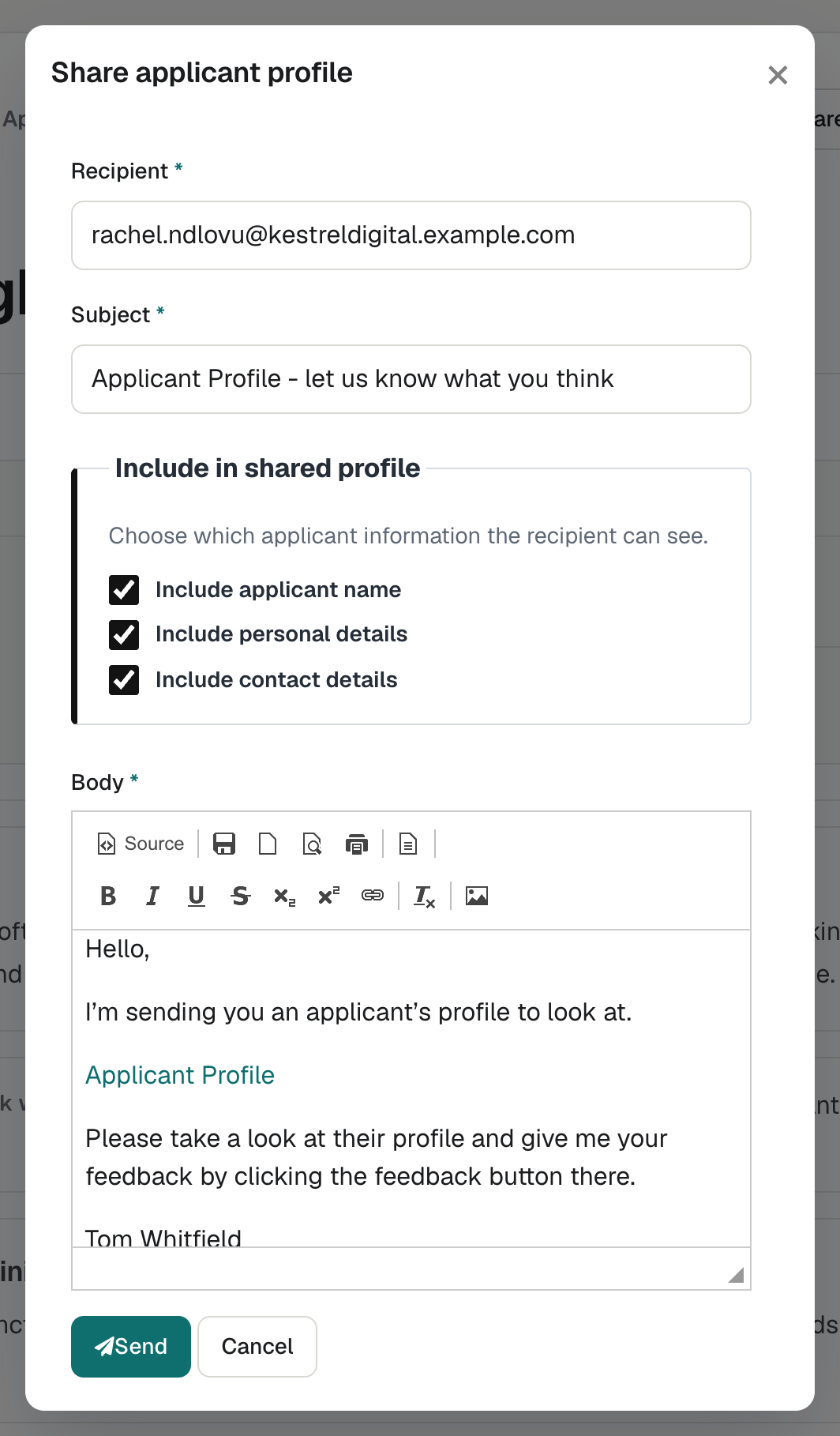
The Share profile dialog, with the employer contact's email address, an editable message and options to leave out the name, personal details and contact details.
Staff share a profile by email and choose whether to include the name, personal details and contact details.

See enrola with your own vacancies

Book a demo and the enrola team will show you how enrola would handle your vacancies, applicants and employers.

Choose who receives it

You choose the recipient from the Employer’s contacts, with the vacancy’s Contact chosen first. “Add new contact…” adds one without leaving the window.

Employers reply from the profile

Employers open the profile on a web page, download it as a PDF and send feedback, including an interview request. They do not need an enrola login.

The Application keeps up

Sending a profile moves the Application to Profile sent, and employer feedback notifies the Supervisor.
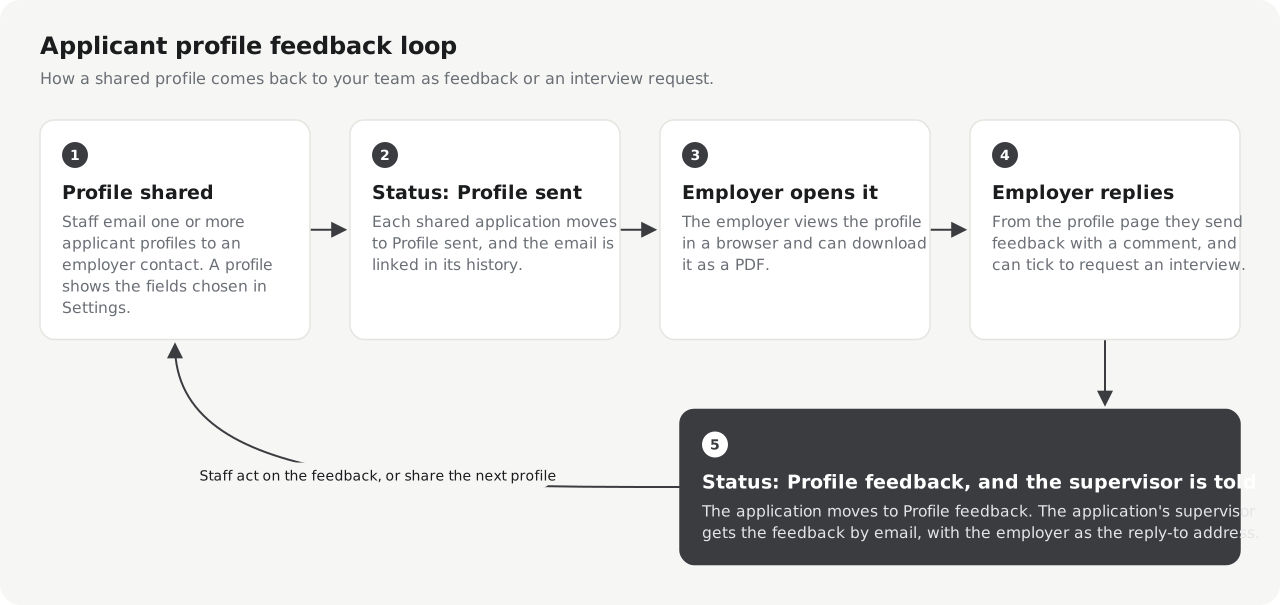
Diagram of the applicant profile loop: staff email a profile to an employer, the application moves to Profile sent, the employer views or downloads it and replies, and the application moves to Profile feedback while its supervisor is emailed.
A shared profile comes back as feedback or an interview request, and the application status and supervisor are updated automatically.

How it works

  1. Choose the fields applicant profiles show, in Settings.
  2. Select Applications and send their profiles.
  3. The employer views the profile and sends feedback or asks for an interview.
  4. The Supervisor is notified and the Application’s status updates.

Questions

Can we send profiles to several employers?
You can share a profile with any email address, one at a time, or send several profiles at once to a Contact at the Opportunity’s Employer.
How do employers give feedback on applicants?
They send feedback from the profile page, including an interview request, and the Supervisor is notified.
Does the profile name the vacancy?
No. Shared profiles and their emails do not name the vacancy or its employer.

Book a demo of enrola

A demo shows how enrola would handle your vacancies, applicants and employers. The enrola team then sets up your organisation.