One record holds the whole vacancy
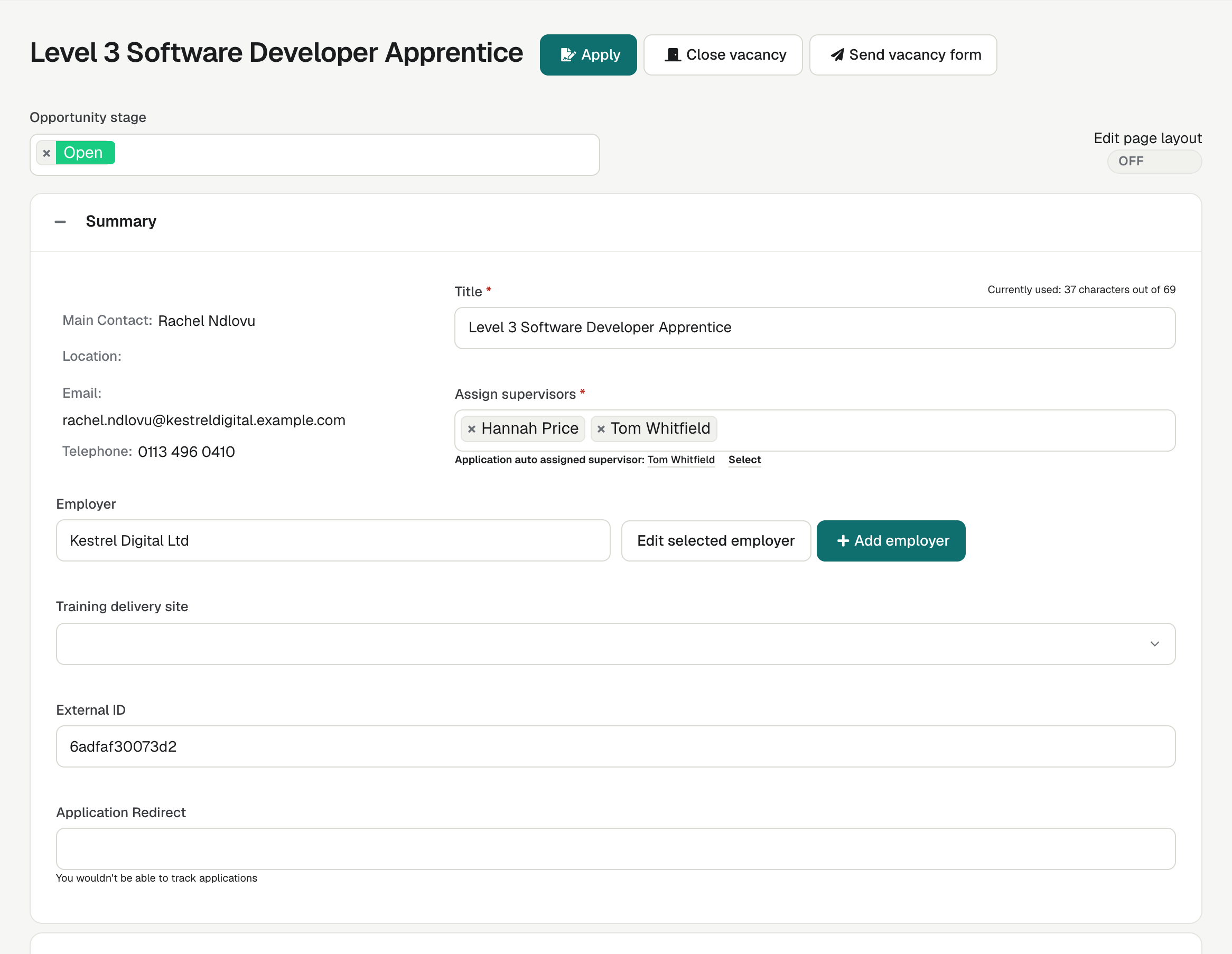
The Opportunity holds the summary and description, one or more locations, salary, hours, working week, duration, possible start date, closing date and positions available. Salaries can be a single figure or a range, per day, week, month or year.
Three types of Opportunity
Each organisation starts with three Opportunity types, Apprenticeship, Quick Register and Full cost course, and can add its own. Each type has its own application form and workflow, so a short talent-pool sign-up does not follow the same steps as an apprenticeship.
See enrola with your own vacancies
Book a demo and the enrola team will show you how enrola would handle your vacancies, applicants and employers.
Ask the employer for the details
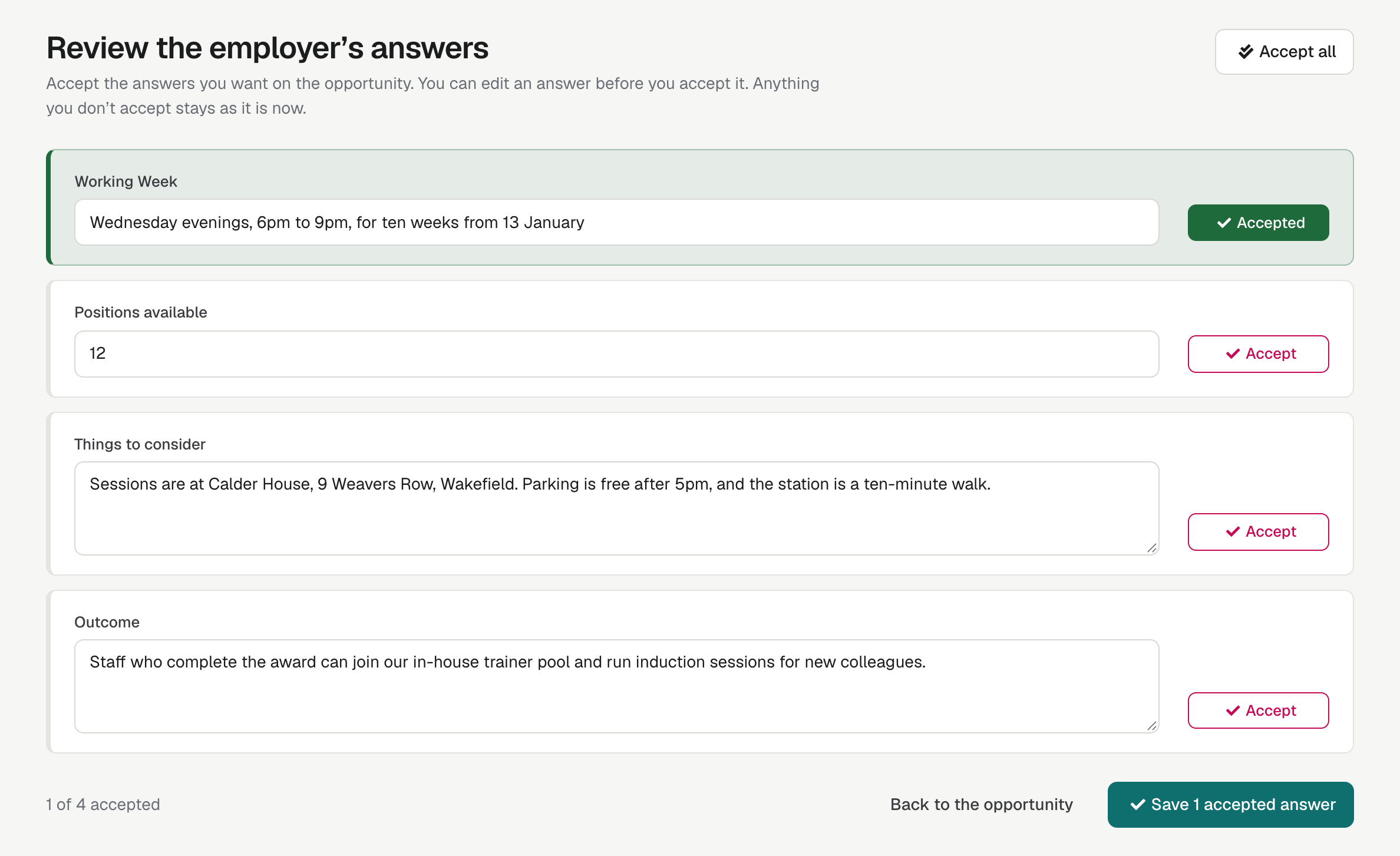
Employers often hold the information a vacancy needs. You can send the employer a form for the fields you choose, then review their answers and merge them into the Opportunity.
The form is laid out like your advert, and you review the employer’s answers one at a time before any reach the Opportunity.
Opportunities look after themselves
Unfilled Opportunities past their closing date are archived automatically each night. Once applicants reach Ready for enrolment for every position, the Opportunity is marked Filled, and each Opportunity can have a default Supervisor, who is assigned to every Application made to it.
Close a vacancy when you are ready
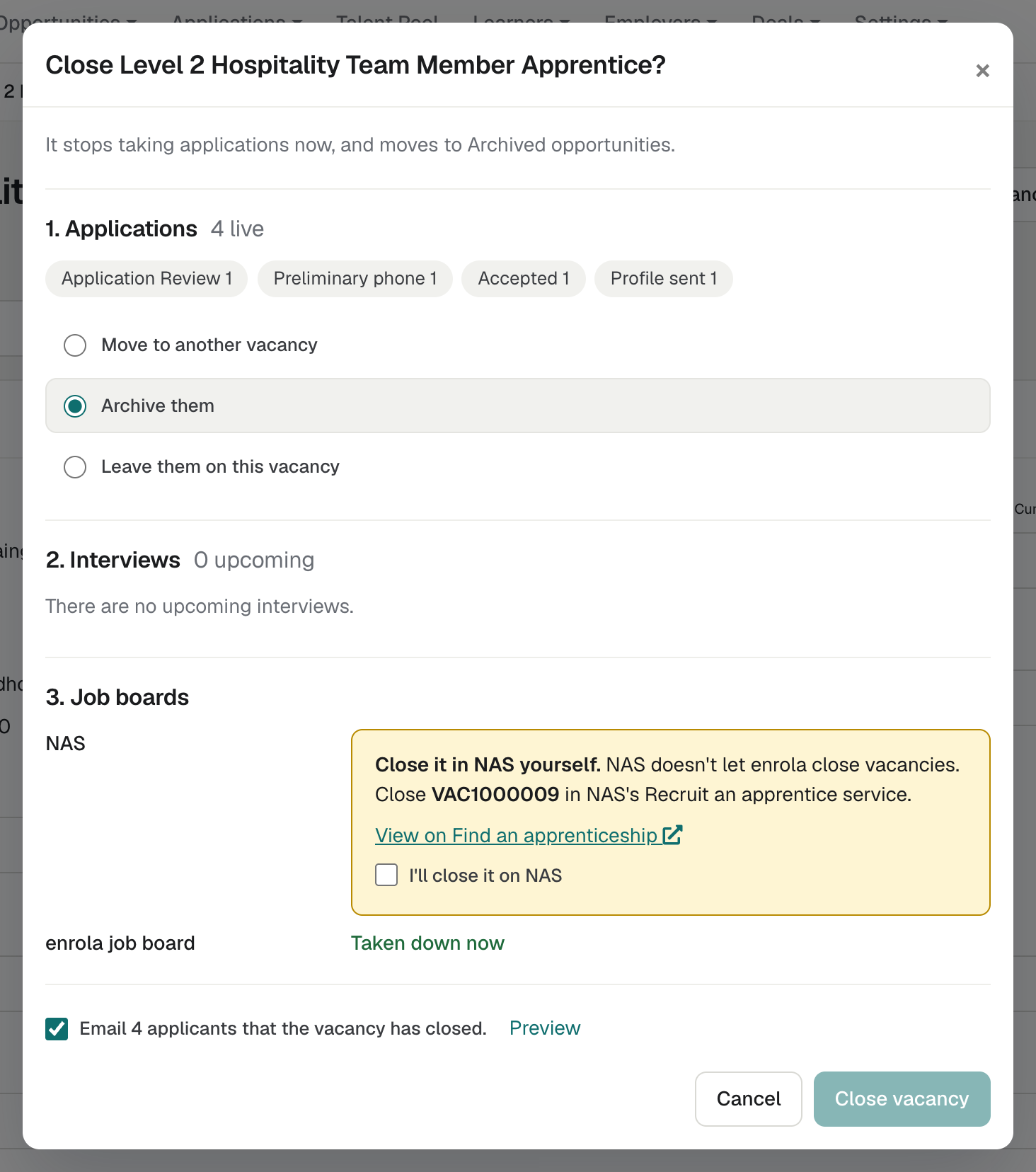
Admins can close an Opportunity straight away from a Close dialog, and reopen it later. A closed vacancy takes no more applications, and its page says it has closed. Admins and Team Owners can also close up to 50 Opportunities at once from the list.
Decide what happens to its applicants
The Close dialog asks what happens to the open Applications and booked interviews. It can move Applications to another live vacancy, cancel interviews, and email the applicants that the vacancy has closed.
Move applicants to the Talent Pool
The Close dialog’s first choice moves applicants who agreed to be considered for other roles into the Talent Pool and archives the rest. Closing many vacancies at once offers the same choice, and one tick box emails their applicants in each Opportunity type’s own wording.
See every vacancy and its status
The Opportunities list shows each vacancy’s status: Not posted, Posted, Error, Closed, Filled or Archived. Opportunities can be duplicated one at a time and exported to CSV in bulk.
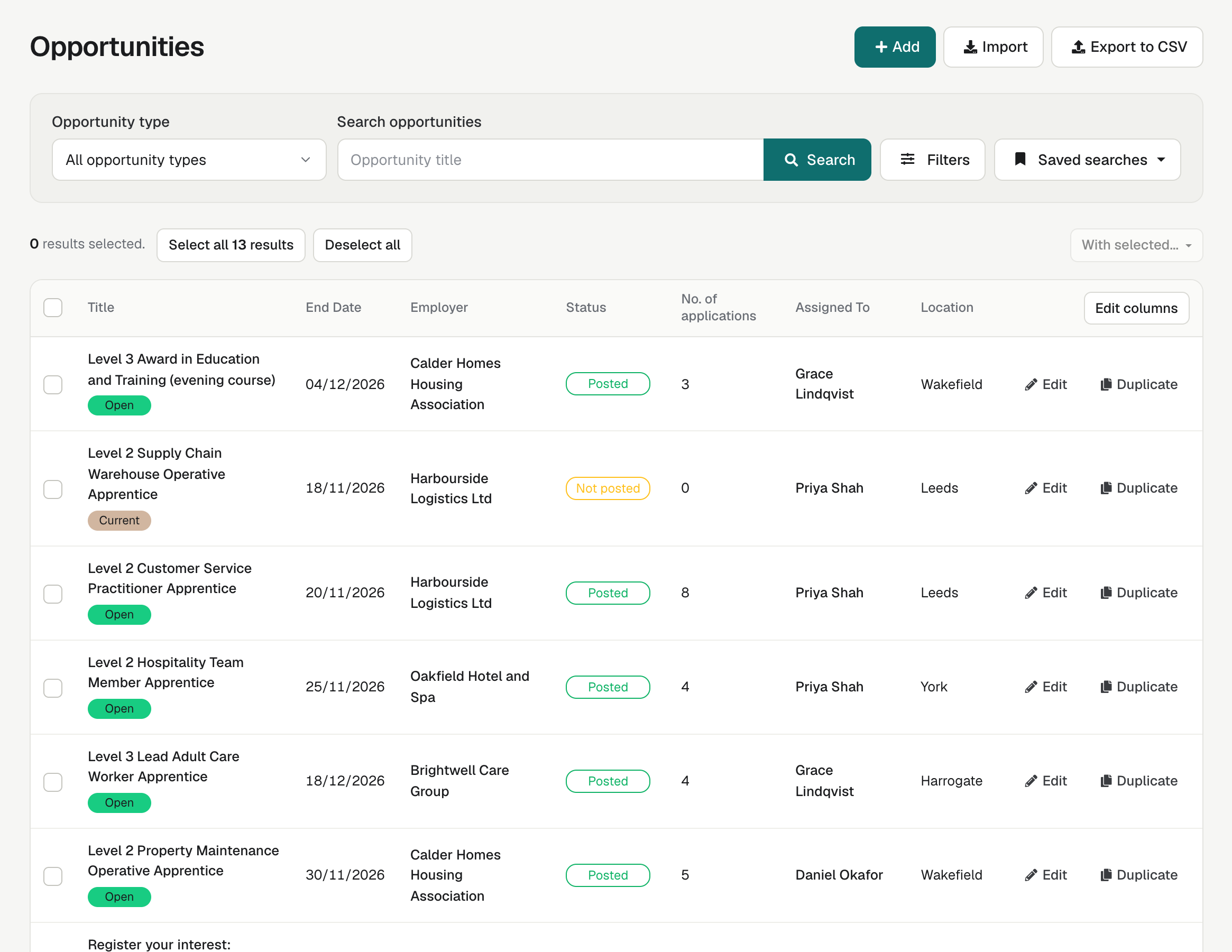
Admins and Team Owners can delete many Opportunities at once. Opportunities with Applications, or still advertised on a job board, are left in place.
Assign a user to many vacancies
Admins and Team Owners can assign a user to up to 100 selected Opportunities at once, adding them to or replacing the users already assigned. The Opportunity field once called “Assign supervisors” is now “Assign user”.
A Contact for each vacancy
Each Opportunity has its own Contact, chosen from its Employer’s contacts, and “Add new contact…” adds one without leaving the page. Employer emails, requests for more information and profiles for that vacancy go to its Contact.
How it works
- Create the Opportunity. Admins can also import existing Opportunities from a CSV file.
- Send the employer a form for any details you are missing.
- Post the Opportunity from Posting Control.
- Search applicants you already hold and assign suitable ones to it.
- Close the Opportunity when you are ready, or let enrola archive it after its closing date.