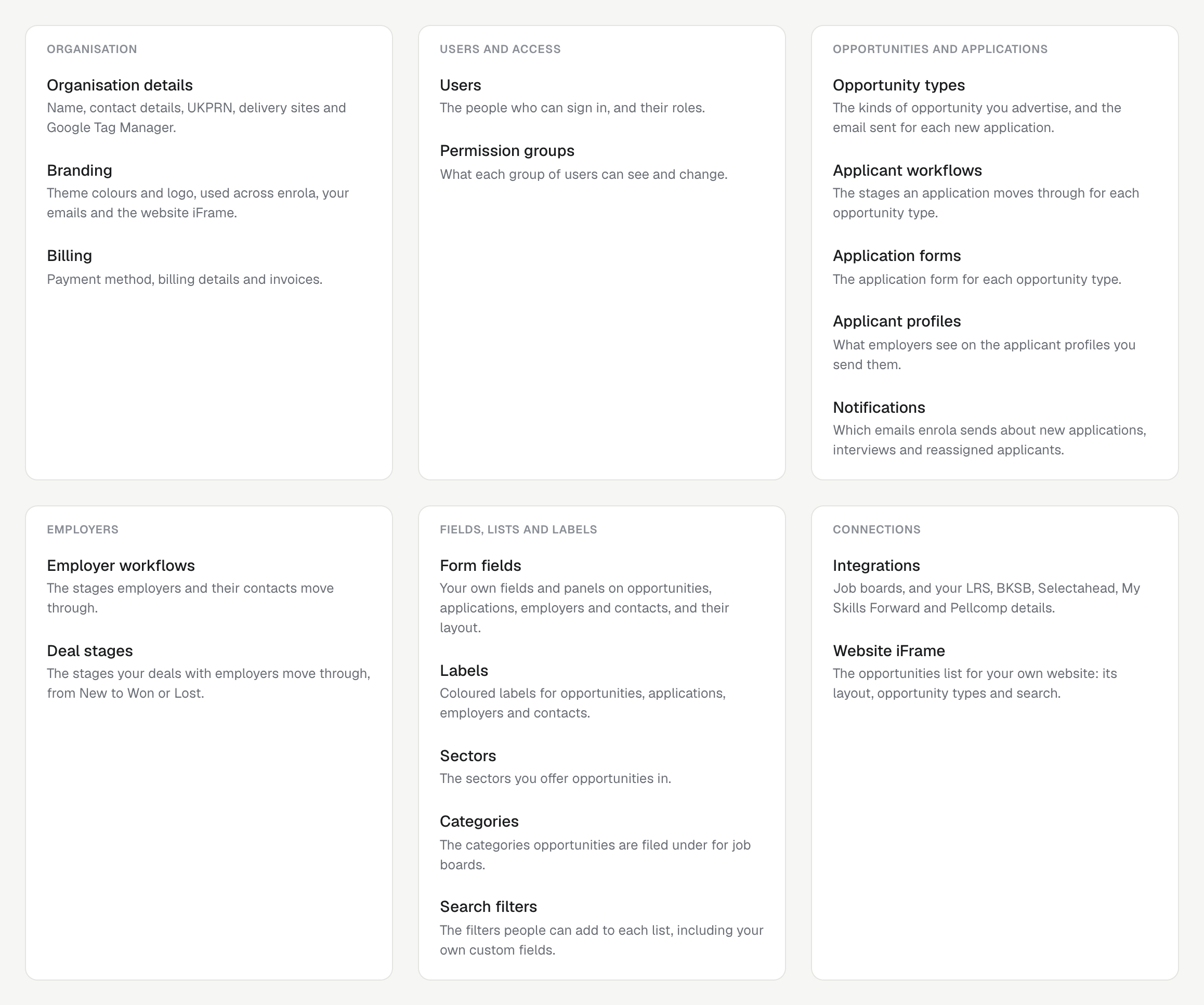
Settings in six groups
Settings are grouped into Organisation; Users and access; Opportunities and applications; Employers; Fields, lists and labels; and Connections.
What admins can change
| Setting | What it controls |
|---|---|
| Applicant workflows | The statuses for each Opportunity type and what each does |
| Application forms | The questions on each Opportunity type’s form |
| Custom fields and panels | Extra fields on Opportunities, Applications, Employers and Contacts |
| Built-in field names | The wording of built-in fields on records, forms and profiles |
| Labels, sectors and categories | How records are grouped and coloured |
| Search filters | Which filters each list shows |
| Applicant profiles | Which fields employers see |
| Website iFrame | The search fields and Opportunity types on your website |
| Deal stages | The columns of the Deals board, once you start using Deals |
| Integrations | Your accounts with connected services |
| Data retention | Whether archived Applications are deleted automatically, and after how long |
See enrola with your own vacancies
Book a demo and the enrola team will show you how enrola would handle your vacancies, applicants and employers.
Fields where you need them
You can add custom fields and panels to Opportunities, Applications, Employers and Contacts, and choose the order their fields appear in. Coloured labels, sectors and categories help you organise records.
Find and rename fields
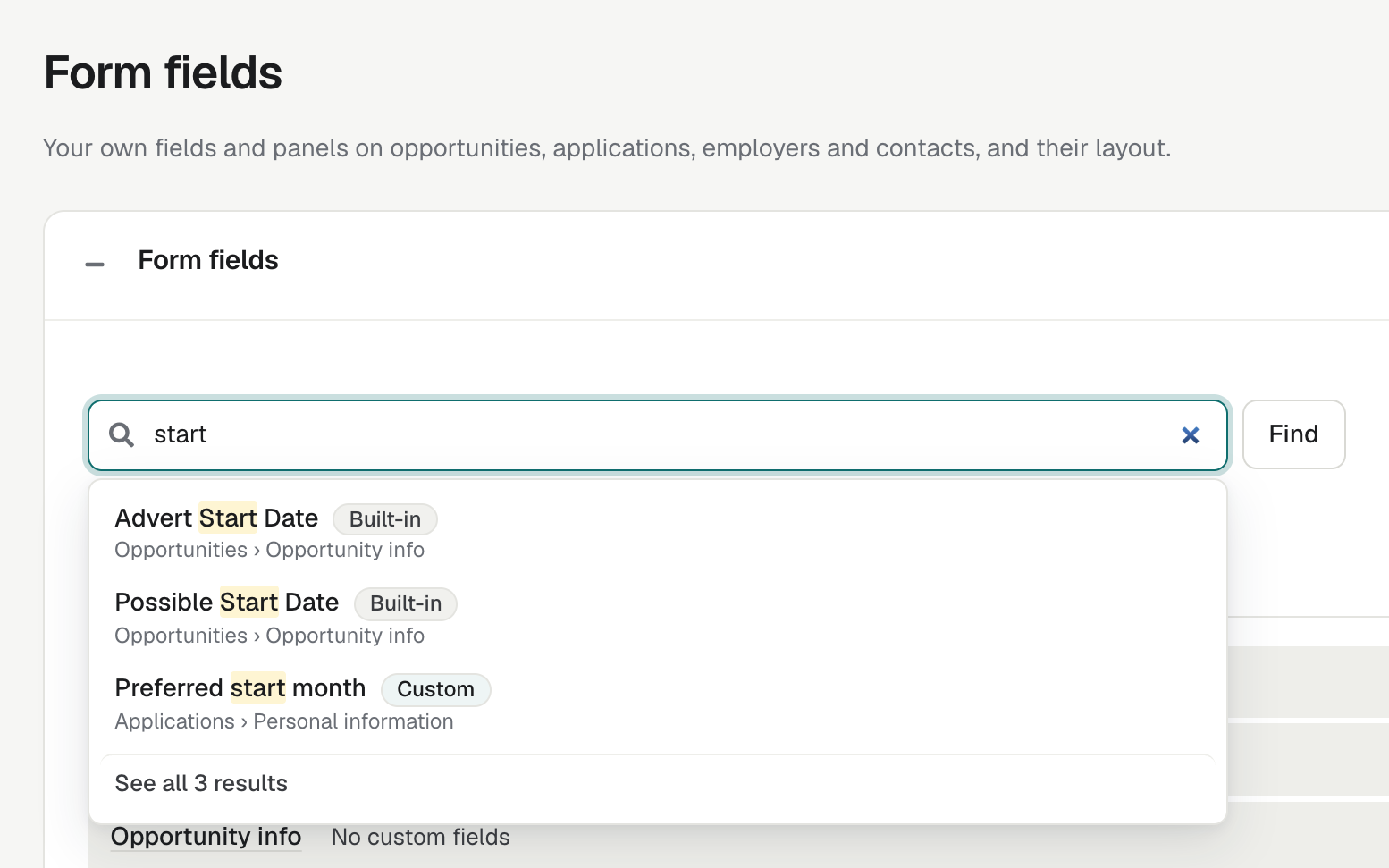
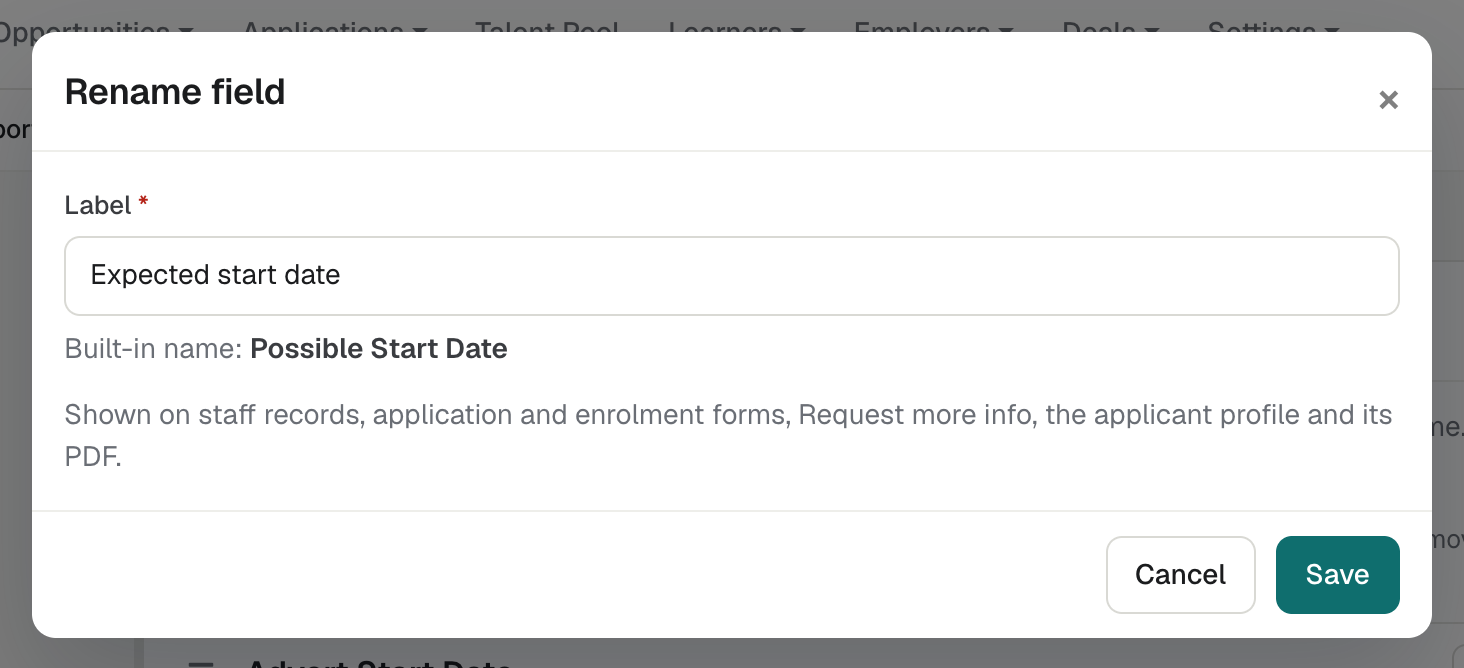
Form fields marks your own fields, suggests matching fields as you type, and has a Find a field page. Admins can rename built-in fields, and the new name shows on records, forms, applicant profiles and their PDFs.
Hide fields, and renamed fields in lists
Renamed fields also show in list columns, filters, Posting Control errors and the Personalise picker, and an import matches a CSV column with the new name.
Admins and Team Owners can hide a field from a panel for everyone in the organisation. Its saved answers are kept, and Show brings it back.
Your branding throughout
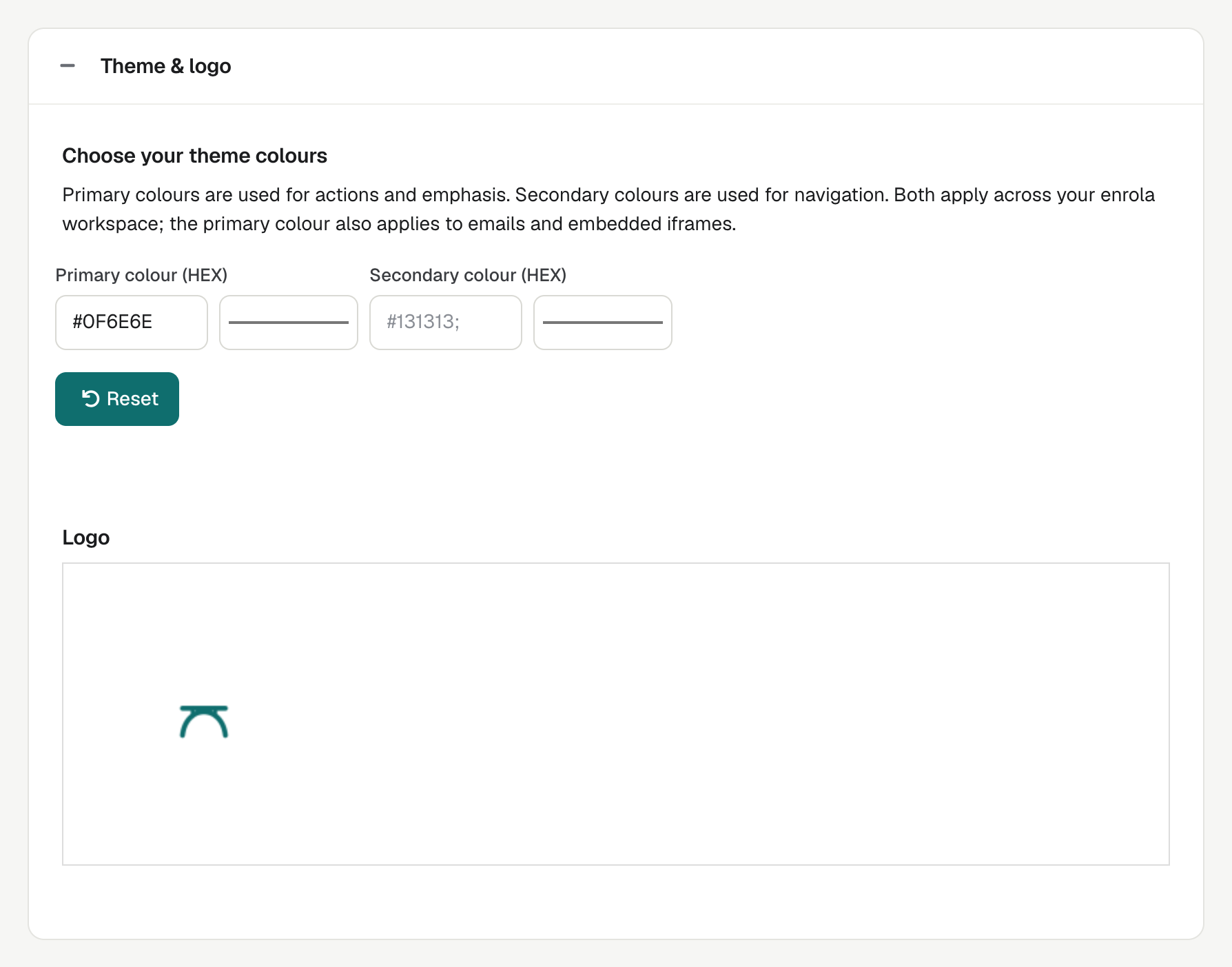
Your colours appear across your workspace, and your logo and colour appear on your emails, job board and iFrame. If a colour is too pale, buttons switch to dark grey so they stay readable. Each organisation has its own enrola subdomain and can have its own Google Tag Manager container, added by the enrola team.
Light or dark, on any screen
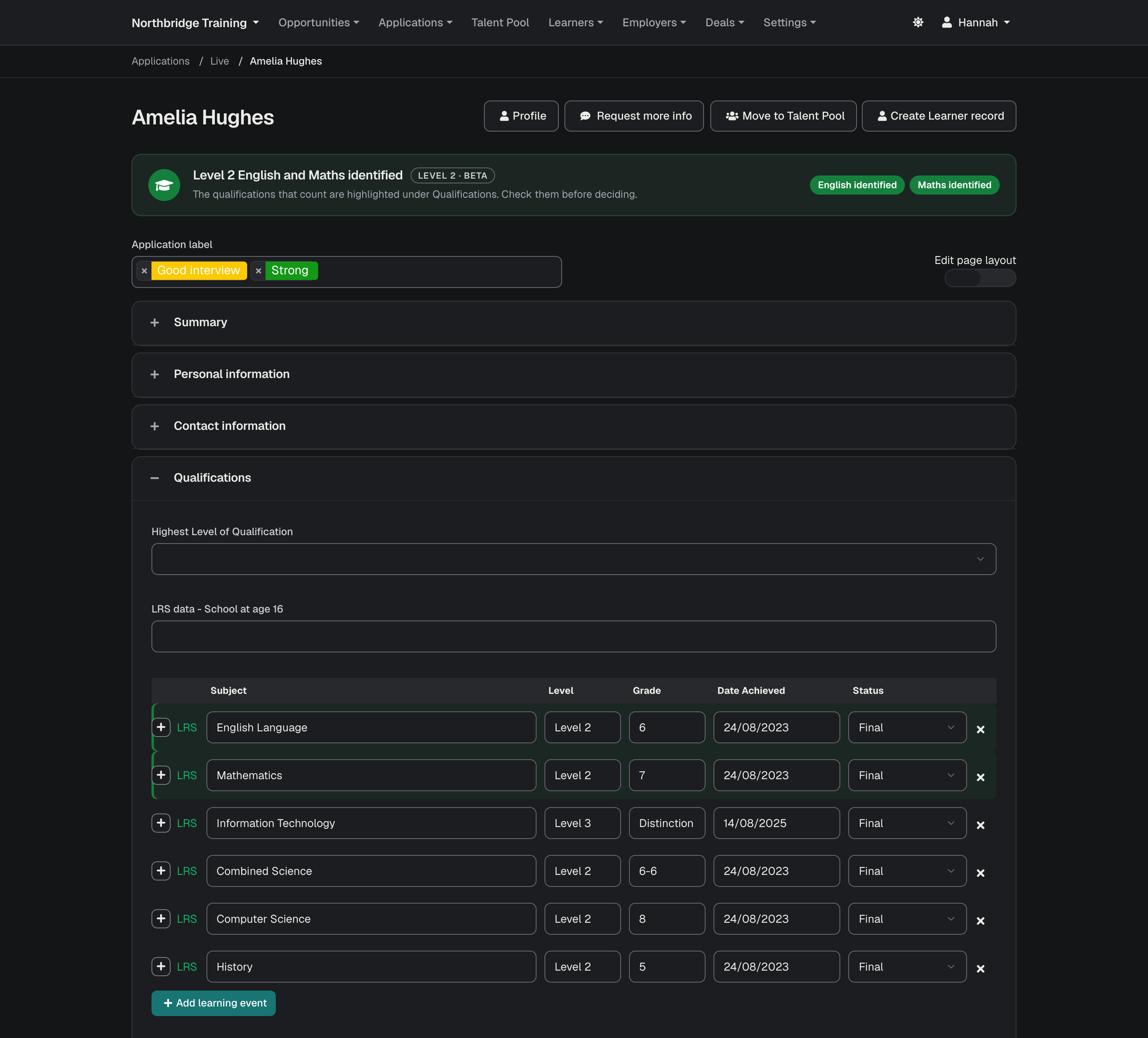
Each user can switch enrola to a dark mode from the header, and enrola remembers the choice on that device. Staff can rearrange the panels on Application, Opportunity and Employer pages on a phone, by touch or keyboard.
Roles and several organisations
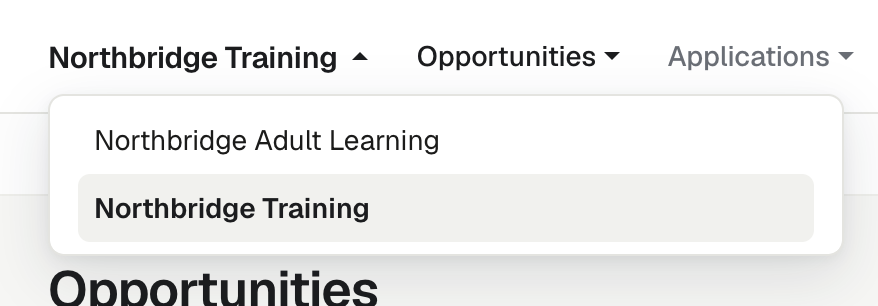
Users have one of four roles: Read Only, User, Admin or Team Owner. One login can belong to several organisations, with a switcher between them, which suits colleges and groups with more than one provider.
Questions
Can we add our own fields to enrola?
Can we change the names of built-in fields?
Can we hide fields we do not use?
Can one person work across several organisations?
What user roles does enrola have?
Last reviewed 31 October 2026