Build the form you need
You choose the fields for each form, which are required and, for longer answers, a minimum number of words. Each Opportunity type has its own form, so a Quick Register sign-up can stay short while an apprenticeship form asks for more.
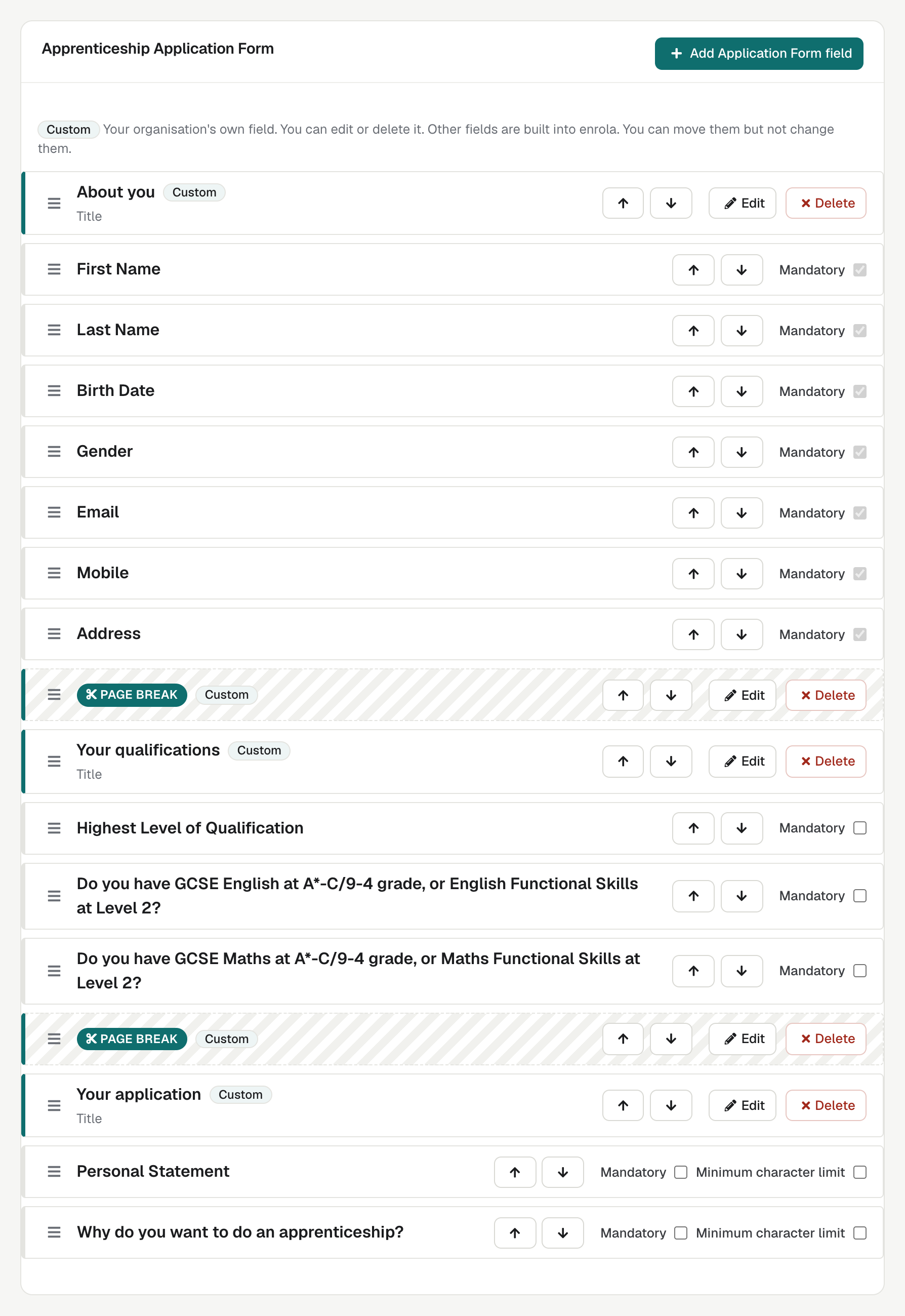
Split long forms into steps
Page breaks turn a long form into steps, with a progress bar and checks on each page, so applicants correct mistakes as they go.
See enrola with your own vacancies
Book a demo and the enrola team will show you how enrola would handle your vacancies, applicants and employers.
Start from apprenticeship sections
Built-in sections cover personal and contact details, residency, learning difficulties and disabilities, transport, GCSE English and maths, qualifications, work history and an emergency contact. Custom questions can be text, paragraph, rich text, dropdown, multiple choice, radio buttons, tick box, date, file upload or a consent statement.
Easier for applicants
Applicants can upload a CV through a file upload question, and find their address from their postcode and house number. The form works on phones, including date entry, and carries your logo and colour.
Every applicant hears back
Every applicant receives an email confirming their application, from the Opportunity type’s own template, so the message suits the kind of vacancy they applied for.
A thank-you page you can measure
After applying, applicants see a thank-you page at its own address. It can send an event to your Google Tag Manager container without any applicant data.
How it works
- Open Settings and choose the application form for an Opportunity type.
- Add built-in sections and your own questions.
- Mark required fields and add page breaks.
- Publish an Opportunity of that type; its adverts link to the form.