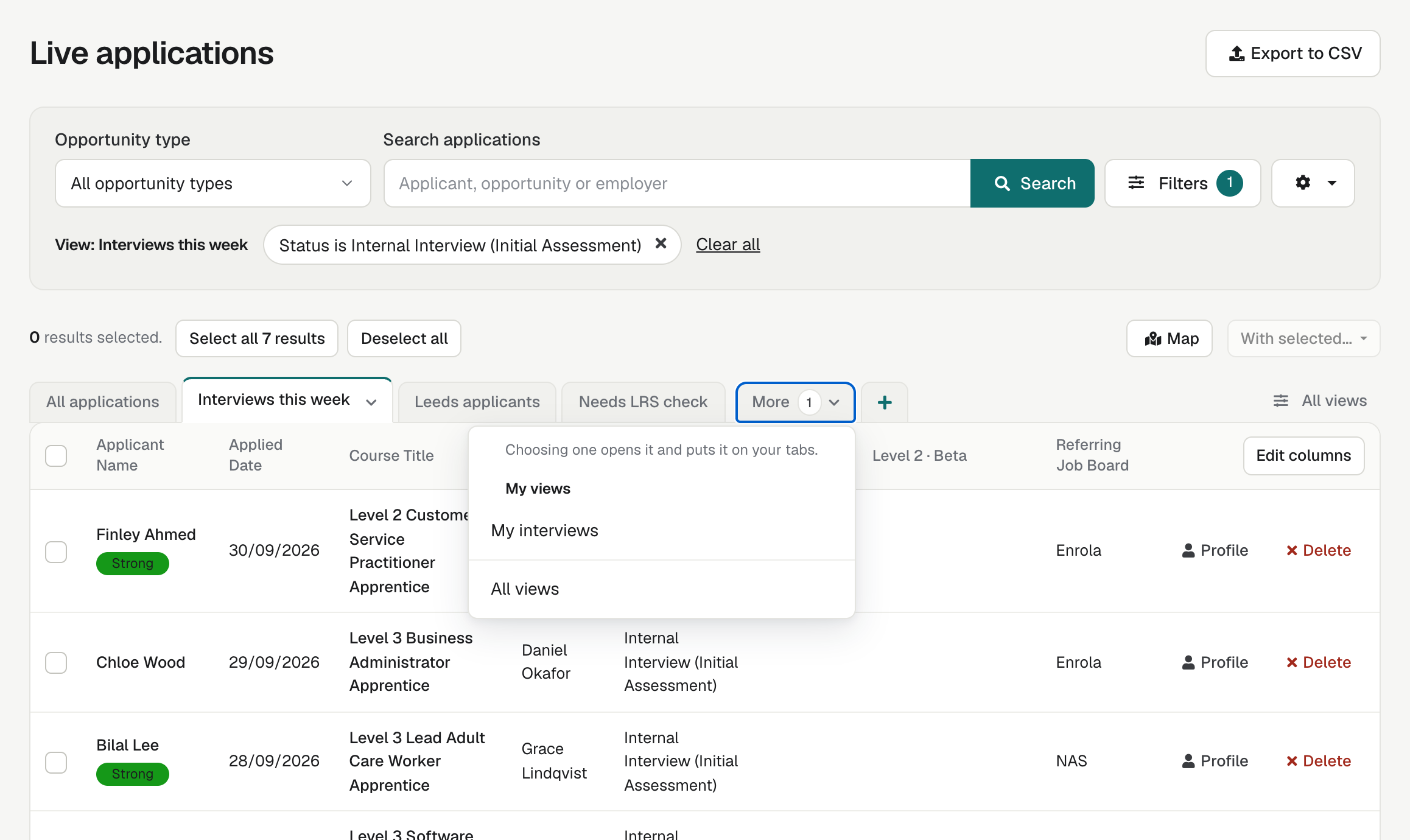
A view saves a list’s search and filters under a name, so anyone can open the same records again in one click. Saved searches are now called views, and with early access your views open from tabs on the list itself.
Why views
Most teams return to the same few lists every day, such as this week’s interviews or one area’s employers. Building those filters again each morning takes time, and two colleagues can build them differently. A view is built once and opens the same way for everyone.
Save a view
Filter the list, open Views and choose “Save as a new view”. Give it a name and choose who uses it: only you, under My views, or your team, under Team views. A view keeps the search and every filter, and you can save as many views as you need.
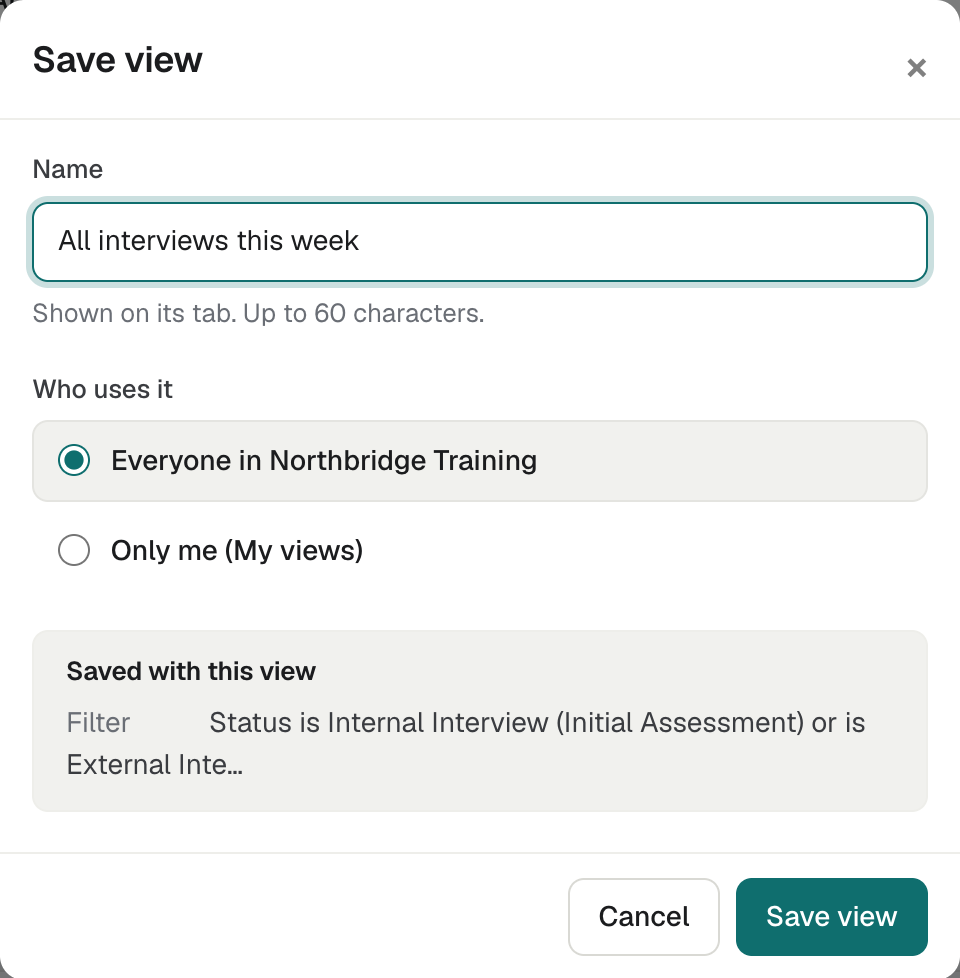
Views on every main list
Views work on lists of Applications, including archived ones, the Talent Pool, Opportunities, Employers and Contacts. Searches your team saved before are kept: personal ones are under My views and shared ones under Team views.
Tabs on the list (early access)
With early access, views appear as tabs along the top of the list, after a tab for the whole list. Each person keeps up to four views on their tabs and drags them into their own order. The rest wait under More, and choosing one opens it and puts it on your tabs.
A starting set for new colleagues
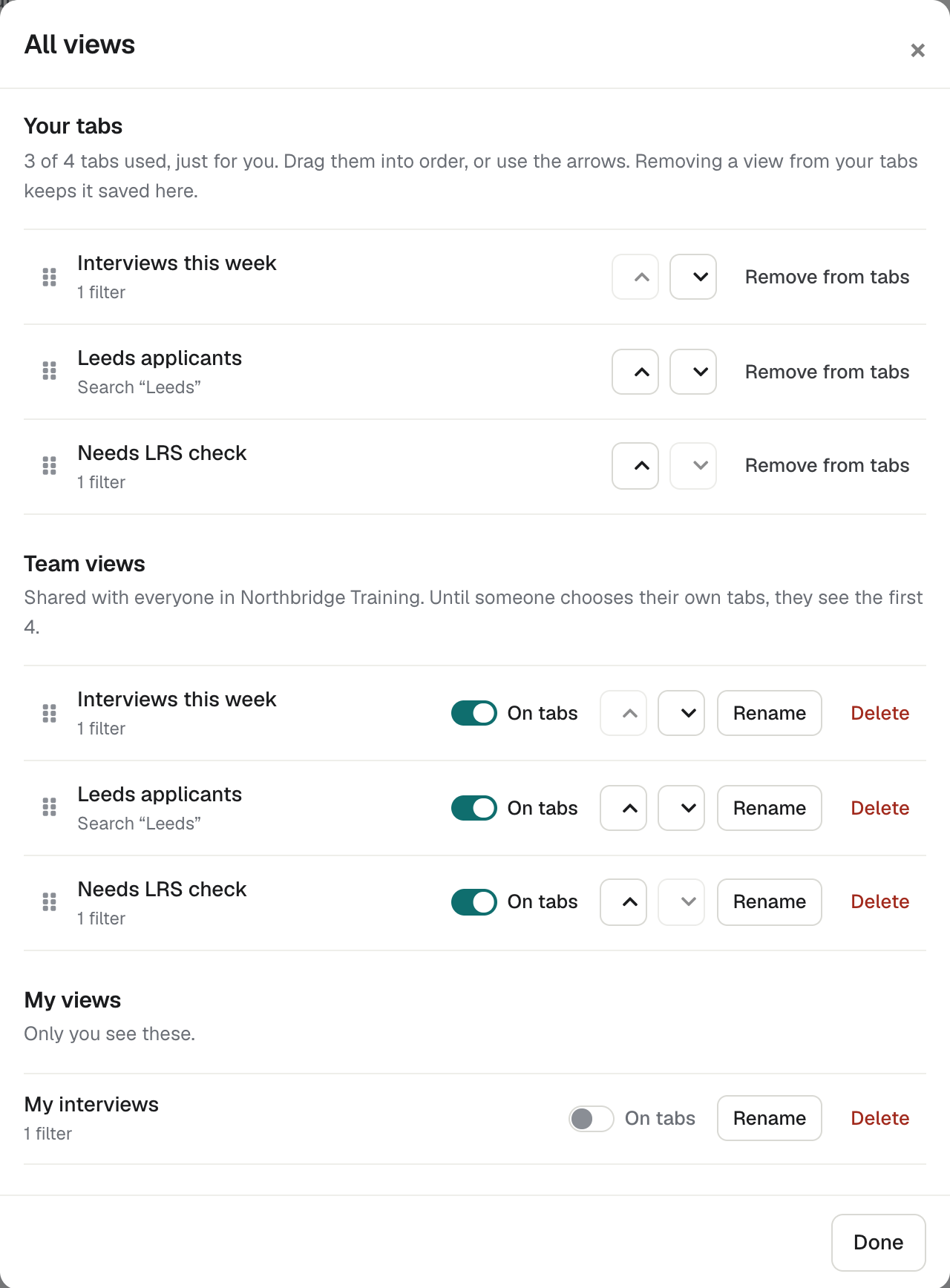
Until someone chooses their own tabs, they see the team’s first four views, in the order set under All views. Arrange that order once, and everyone who joins starts with the lists that matter most.
When the list changes
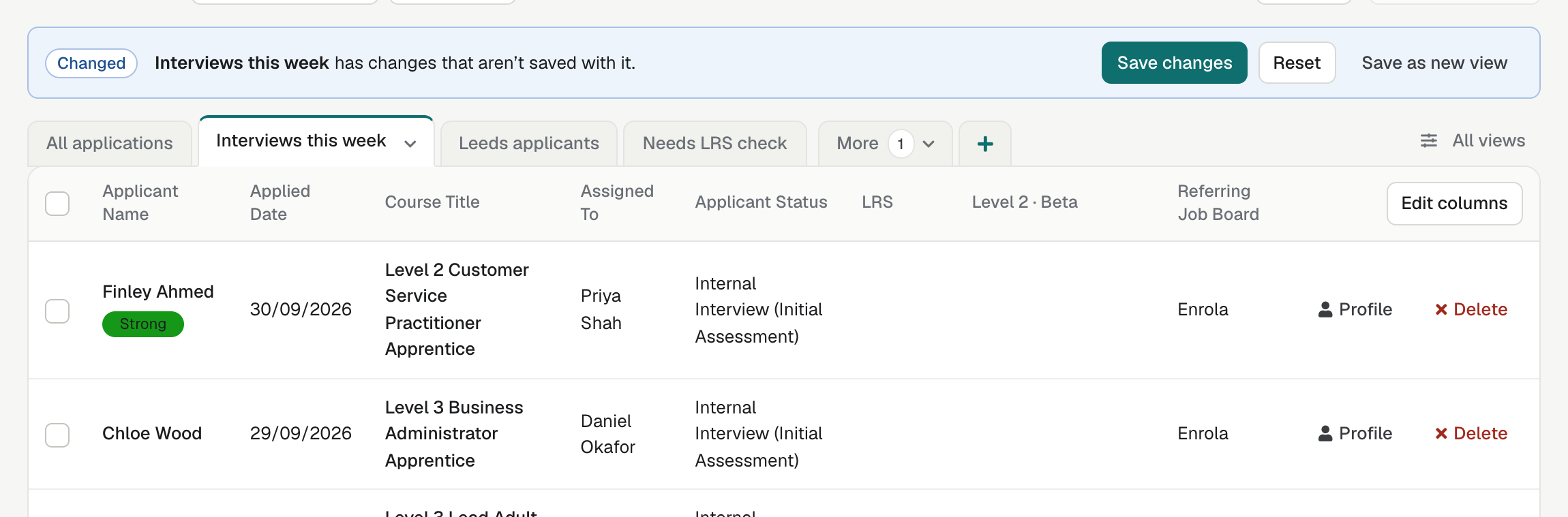
If you change the filters while a view is open, a Changed line appears above the tabs. Save changes updates the view, Reset puts the list back as the view was saved, and Save as new view keeps both.
All views in one place
All views lists every Team view and every one of your own views, each with an On tabs switch. From there, Users and above can rename or delete a view, and drag Team views into the team’s order.
Who can do what
- Everyone, including Read Only users, can open views and choose their own tabs.
- Users and above can save, rename, change and delete views, including Team views.
- A view kept for “Only me” is not shown to colleagues. Making a Team view “Only me” also takes it off their tabs.
Turn on early access
Admins and Team Owners turn on early access in Settings → Early access. It applies to everyone in the organisation and can be turned off again. Without it, views open from the Views menu beside Filters.
Read more
Search and exports covers filters and exports, and settings and branding covers early access. Other changes are in product updates.
Questions
What happened to our saved searches?
They are now views. Searches saved for one person are under My views, and searches shared with the team are under Team views.
How many views can we save?
As many as you need. With early access, each person keeps up to four on their tabs, and the rest are under More.
Can Read Only users use views?
Yes. They can open views and choose their own tabs. Saving and changing views needs User or above.
Can a colleague see my views?
Not if you choose “Only me” when you save the view. Views for your team are shown to everyone in your organisation.